A customer recently asked on our community forum how to move about 1,000 devices from their current MDM platform to Headwind MDM. The key fact applies to any fleet size: MDM platforms do not transfer enrollments to each other, so a migration means re-provisioning every device. Do it in stages. This guide covers the workflow from the first test device to the last batch.
Why companies switch to a new MDM provider
Companies move to Headwind MDM when they need to self-host the management server, access the mobile application source code or hold a perpetual license.
Why MDM migration requires a factory reset on every device
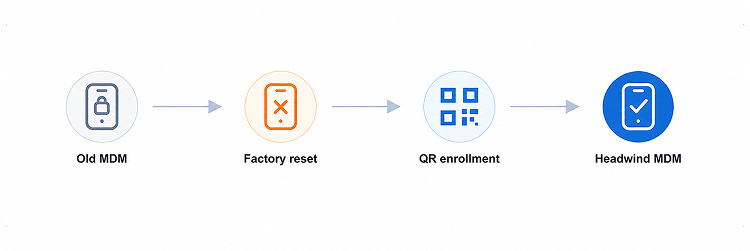
Android permits only one device owner per device, and the MDM app takes that role during enrollment. It cannot be passed from one vendor’s app to another. To move a device to Headwind MDM, you factory-reset it to remove the old management setup, then provision it again. This applies to any MDM-to-MDM migration. A good plan keeps re-enrollment quick and keeps the old system available until the replacement is fully tested.
What to prepare before an MDM migration
Document the existing setup first: installed applications, active policies, restrictions, and any custom launcher or kiosk screen. Screenshots help. You will use this to recreate the same environment in Headwind MDM.
Once you have documented the current setup, you can prepare the Headwind MDM server. Check the hardware requirements and follow the installation guide for an on-premise deployment. This option keeps device data within your network and can also be used in air-gapped environments, since Headwind MDM does not rely on Firebase for push notifications. To test before buying server hardware, start in the Headwind MDM cloud and move to an on-premise installation later.
Kiosk mode needs a commercial edition of Headwind MDM. The Community Edition does not include it, so add licensing to the migration plan when your fleet runs kiosk screens.
Six steps to migrate a device fleet to Headwind MDM
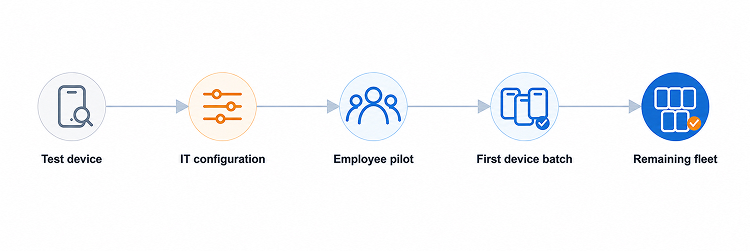
- Set up the Headwind MDM server. Install Headwind MDM on your own server and make sure you can access the administration panel before working with any devices.
- Start with two devices from the existing fleet. Factory-reset one device and enroll it in Headwind MDM using the configuration intended for your production fleet. Leave the other device connected to the old MDM. You can then place them side by side and check whether any applications, settings, or restrictions are missing.
- Recreate the working environment. Add the applications your users need and configure the relevant policies. Compare the new home screen with the device that is still managed by the old platform. The layout does not need to match exactly. Users should be able to find the same applications and complete their usual tasks.
- Use the test device as a user would. Do more than check whether enrollment was successful. Restart the device, reconnect it to the network, open the main applications, and verify that updates and restrictions work as expected. Fix any configuration issues before giving the device to a user.
- Run a small pilot with employees. Choose a few employees who are willing to test the new setup during their normal workday. Their feedback may reveal issues that are easy to miss in an IT test. Examples include a missing application or a restriction that only becomes a problem after several hours of use.
- Move the remaining devices in batches. Once the pilot users can work without problems, begin migrating the rest of the fleet. Avoid resetting every device at once. Smaller batches are easier to support, and you can pause the rollout if an unexpected issue appears.
This sequence gives you several opportunities to find mistakes before they affect the whole fleet. First, the IT team checks the basic configuration. Then employees test it in real working conditions. By the time the main rollout begins, the enrollment process should already be familiar to everyone involved.
Migrating a large fleet with minimal disruption
Group devices by office, department, or hardware model. Finish and verify one group before starting the next. Test each device model separately, since settings can behave differently across manufacturer firmware.
Keep the old MDM server and subscription active until the final batch is enrolled and verified. Devices not yet reset still depend on it, and admins may need it to check the previous configuration.
Warn users before their migration: a factory reset erases local files and app data, so anything important should be backed up. Show them the new home screen and tell them whom to contact if something is missing.
For devices in different offices, QR code enrollment lets local staff provision hardware on site without shipping it to IT. Headwind MDM supports QR enrollment without an Android Enterprise account.
Test Headwind MDM before migrating the fleet
You can use the open-source Community Edition, available under the Apache License, to test enrollment and start rebuilding your configuration before any production device is reset. When the test setup works, review the available license plans. If you’re not sure which license plan better matches your needs, contact us with your device count, Android versions, and whether you need kiosk mode.