Rolling out a corporate app update can feel urgent, and it is the stage where the most common Android MDM rollout mistake happens. Your developers ship a security patch late on a Friday. A supervisor asks when it will reach the whole fleet. The obvious reaction is to deploy it across the entire fleet immediately.
In practice, that’s one of the fastest ways to create unnecessary problems. An update that works on your desk can still break in the field. Testing first may seem slower, but it usually saves much more time than fixing hundreds of devices afterward. You test on a few devices first, then on a small group, then on everyone.
Why a bad update hurts more than a bad app
An application crash is inconvenient. An update failure can leave a device completely inaccessible. Push an untested update to production and you invite update incompatibilities, app crashes, and bootloops. Some of these you can fix from the console. Others need a person to hold the device in their hands and start over with a fresh enrollment.
That becomes expensive when the device is hundreds of kilometers away. Imagine a kiosk installed in another city, or a rugged scanner out on a delivery route. Recovering either device may require an on-site visit. A remote employee is often just as far from your desk as that kiosk.
A mixed fleet makes the risk bigger
Android devices vary significantly across manufacturers, Android versions, and hardware platforms. A single fleet often mixes consumer phones, rugged handhelds, and low-cost AOSP tablets used as kiosks. Each vendor ships its own build. Each Android version handles permissions, background limits, and provisioning a little differently. An update that installs cleanly on a recent Samsung phone can fail on a five-year-old scanner running an older AOSP image.
Headwind MDM runs on AOSP from Android 9 and up, with no Google Mobile Services dependency. This makes Headwind MDM suitable for offline and air-gapped deployments. It also means your devices can span a wide range of Android builds. The best way to reduce the risk is to test updates on the devices you actually use.
For this reason, maintaining a representative test fleet is important. The best test group holds one of every model in the company. If that is not possible, cover the oldest and the most common models first.
Protections built into Headwind MDM
Headwind MDM includes mechanisms that limit the damage when an update goes wrong:
- Mobile agent crash interception with error reporting
- Crash loop protection that falls back to the unmanaged state
- Unattended remote access
- Update and status logging in the web console
These features help administrators detect problems earlier and simplify recovery. They do not replace a test run. Pushing an update to every managed device at once is still a mistake, even under pressure.
The safe Android MDM rollout: deploy in stages
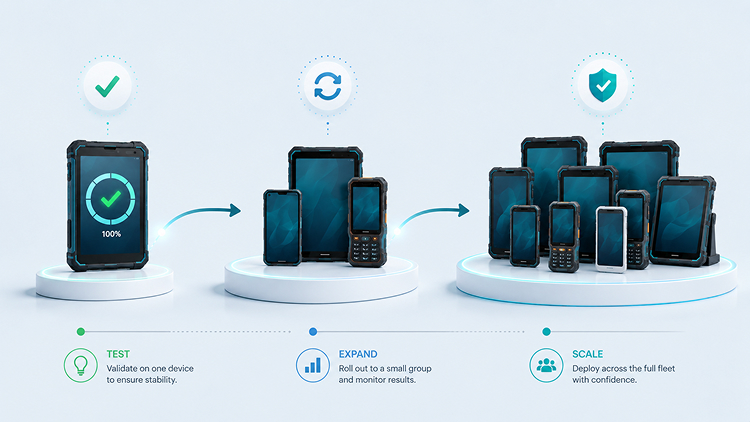
We recommend three stages:
- A few test devices the admin controls directly
- One group of field devices
- The full fleet
Each stage helps identify different types of issues before the rollout expands. The first catches obvious breakage. The second catches issues that only show up in real use, on real networks.
How to set up staged deployment
- Duplicate the production configuration in the Configurations section.
- Create two groups, “Internal test” and “Beta test”, in Settings, Groups section.
- Assign the admin’s devices to “Internal test” and a group of field devices to “Beta test”.
- Make your changes in the new configuration. For example, update the corporate app or the MDM agent.
- In the device list, filter by the “Internal test” group, select all devices, click Group Action, then Set Configuration, and apply the new configuration.
The new configuration will be deployed only to the selected test devices.
Check the test devices before you move on
After the update lands on your test devices, confirm three things:
- Device status and installation status are green. The device is online and the update installed.
- Device logs show no unusual errors or restart loops.
- Devices behave as expected. Open the apps and reboot one device to confirm it comes back clean.
If any test device enters a crash loop or fails to install the update, resolve the issue before continuing. Fix the configuration before it reaches anyone in the field.
Give the beta group time
Once the test devices look clean, move to the “Beta test” group. This stage helps identify issues that are difficult to reproduce in a controlled test environment: weak signals, devices that have run for months without a reboot, and different usage patterns that may not appear during internal testing.
Collect feedback for at least a few hours. If nothing breaks and your beta users report no change in their work, you are ready for the full fleet.
Keep MDM components current without surprises
Your business apps and the MDM agent should stay up to date. Recent releases carry the security patches and bug fixes you need. Skipping updates for too long is its own risk.
The main risk in any Android MDM rollout comes from deploying updates automatically without validation. Headwind MDM includes a “Check for updates” feature so the admin can keep MDM components current. To avoid pushing an agent update to production without review, Headwind does not deploy updates to all devices by default. Administrators decide when each deployment stage begins.
The safe workflow stays the same:
- Download the update.
- Run the staged test described above.
- Deploy to production only after every check passes.
If any issues occur during testing, contact the Headwind MDM support team before continuing with the rollout.