Setting up WiFi on managed Android devices sounds trivial – until you have to do it across hundreds of units locked down in kiosk mode. What works fine on a personal phone – open Settings, pick a network, type a password – becomes a bottleneck at the scale of a thousand devices, and then, once those devices are in users’ hands, a constant drain on support.
Problems come up repeatedly:
- Initial setup means typing the SSID and password into every device by hand – it’s slow and easy to get wrong.
- Once a device switches to kiosk mode, users often can’t find the WiFi settings at all, so changing networks in the field becomes impossible.
- When users do get into the settings, they sometimes switch networks – and the device stops working on the corporate infrastructure.
Headwind MDM solves each of these problems at its own stage: during device enrollment, during kiosk mode setup, and at the level of ongoing network policy. Here’s how to manage WiFi at every stage, from provisioning to full lockdown.
Provision WiFi during enrollment
The simplest way to get rid of manual entry is to build the WiFi credentials right into enrollment.
In the Headwind console, open the device configuration and go to MDM settings → WiFi settings. The SSID and password you enter here get embedded into the enrollment QR code, so the device connects to the corporate network the moment it’s enrolled – no manual entry required.
For devices that come with the MDM agent preinstalled and enroll without a QR code, the same credentials go into a JSON enrollment configuration file instead. The result is the same: the device comes online already connected.
Working around kiosk mode WiFi locks
Kiosk mode is exactly where most WiFi problems show up. It blocks access to system settings, and it does so quietly: the user taps where the WiFi switch used to be, and nothing happens. In some configurations the status bar is locked as well, which takes away the last obvious way to reach the WiFi settings.
There are two ways to give users controlled access to WiFi without opening up the rest of the device.
Allow the system settings app
Add com.android.settings to your list of allowed packages and turn on the status bar. In practice this is safe: the settings icon doesn’t appear in the kiosk status bar. Users can’t open unrelated settings, while Android’s built-in WiFi manager keeps working. It’s a simple fix for cases where devices just need to reconnect to a different network from time to time.
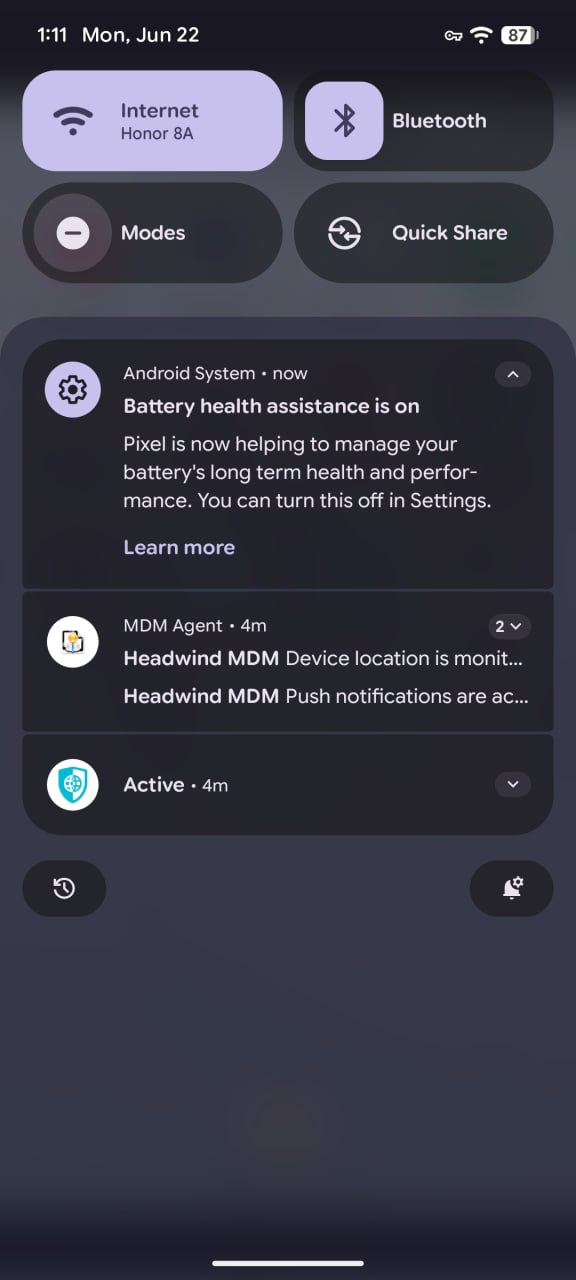
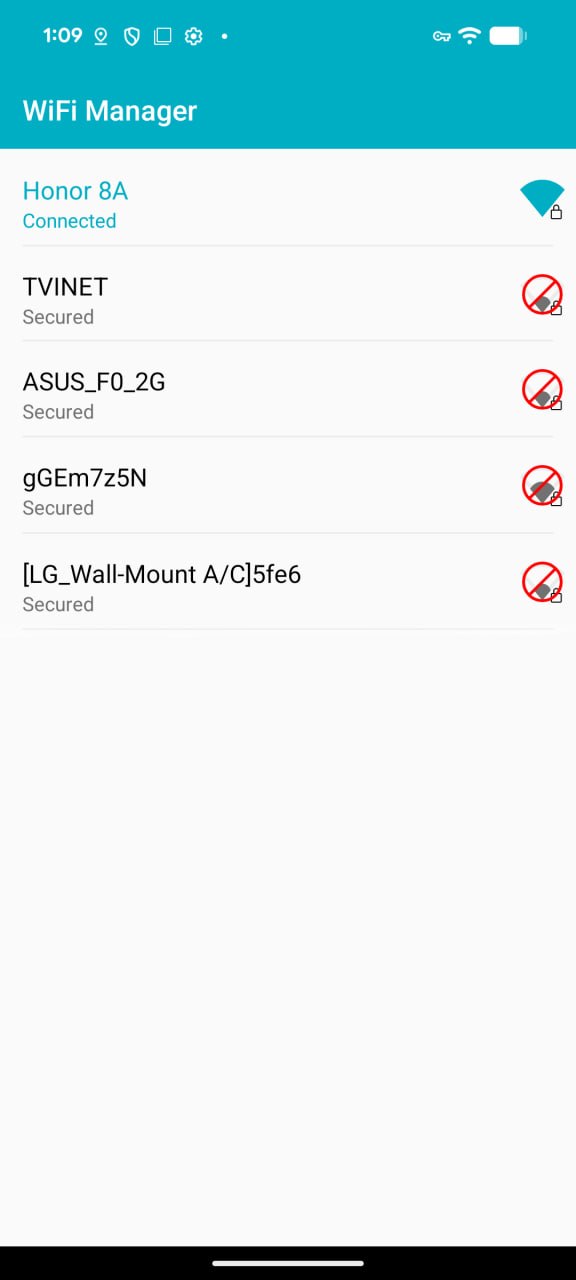
Open WiFi settings from the kiosk app
If your security policy requires the status bar to stay locked, you can still reach the WiFi settings screen programmatically. The kiosk app can fire the android.settings. WIFI_SETTINGS intent to open the WiFi settings directly – giving users one controlled entry point and nothing more.
Predefine corporate WiFi networks
Define the networks centrally and both manual entry and field reconfiguration disappear entirely. When devices only ever connect to a known set of corporate networks, Headwind’s WiFi manager agent can push the SSIDs and passwords – including those for hidden networks – straight to the device. Users connect automatically and never see or type a password.
Add the WiFi manager agent to the device configuration. It runs in kiosk mode with none of the extra setup described above, which makes it the best choice for locked-down fleets. Here is how to set up the WiFi manager through Headwind MDM application settings.
Block unsafe and unknown networks
Predefining networks handles connection management, but not the cases where a user might connect on their own. The WiFi manager lets an admin block unknown or untrusted networks. That keeps a device from joining a random open hotspot where traffic could be intercepted – which closes off an easy data-leak path on devices that leave the building.
Going further: URL filtering and private APNs
Once a device is online, the URL filtering module gives you fine-grained control: set whitelists and blacklists at the web-address level to restrict browsing to approved resources only. Some teams take it even further and run their devices inside a closed network connected through a private APN.
This takes two things:
- Enrollment over the mobile network. On Android, you have to explicitly allow this in the enrollment QR code, otherwise the device will only connect over WiFi.
- A private APN, configured through the APN manager app.
With both in place, the device can operate entirely within an isolated carrier network, with no access to the public internet at all.
Summary
WiFi on managed devices really comes down to a few separate problems: provisioning, access under kiosk mode, and ongoing enforcement of network policy. Headwind MDM has an answer for each one. For most fleets, it’s enough to embed the credentials at enrollment and install the WiFi manager agent – that covers the majority of cases, while the workarounds through the settings app and the intent stay available for when users genuinely need to switch to a different network. Add URL filtering and private APN support on top, and you get full control over how and where your devices connect.