Installing an MDM without camera support on Android is entirely doable. Standard Android enrollment depends on a camera. During setup, you can open a hidden QR scanner by tapping the welcome screen several times. Scanning the QR code installs the Device Policy Controller as the device’s management agent. It is the quickest way to provision a device, and it is the method most MDM vendors document first.
TV boxes, rugged data terminals, signage players, and proof-of-concept units often ship without one, and QR-based enrollment does not work if the device has no camera. Hardware like this frequently runs without Google Mobile Services as well, which removes the QR path completely, because the setup wizard that triggers it is not present.
You can still install the agent and get full control of the device. There are three ways to do it, and which one you want comes down mostly to how many devices you have.
What you are installing
The agent is a Device Policy Controller (DPC) – the app that applies and enforces management policy on the device. Once it’s provisioned as the device’s Device Owner, control of the device belongs to the organization rather than the person using it. As Device Owner the agent enforces policies, blocks or allows apps, usually replaces the launcher, and reports status back to the MDM server.
QR enrollment exists to make all of this fast: the code carries the server URL and configuration, so a large batch can be set up quickly. Without a camera, that shortcut is unavailable, and Device Owner status must be assigned by another method.
Option 1: Install the agent as a normal app
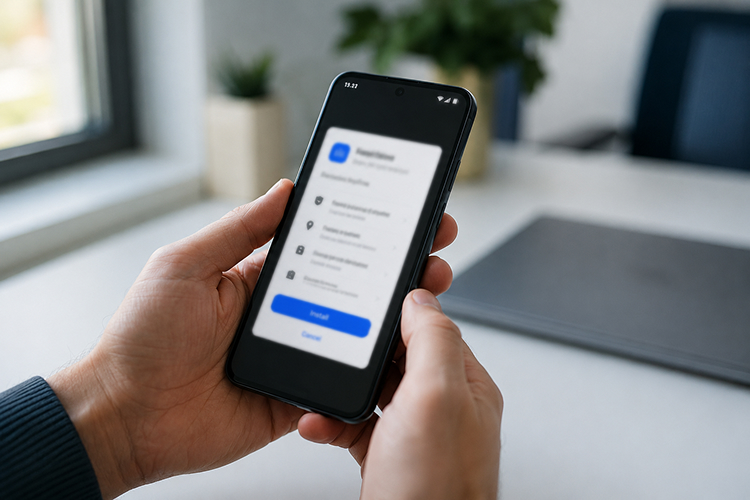
Download the APK and install it like any other application. It runs, and Headwind MDM can still do a few useful things in this state, such as managing content, blocking apps, and collecting device information. What it cannot do without Device Owner rights is most of what an MDM is actually for, even if the user grants extra permissions. This is Application mode, sometimes called limited mode. It is worth using to try the agent out. It is not a way to manage a fleet.
Option 2: Grant Device Owner over ADB
Android lets you promote the agent to Device Owner using a single ADB command.
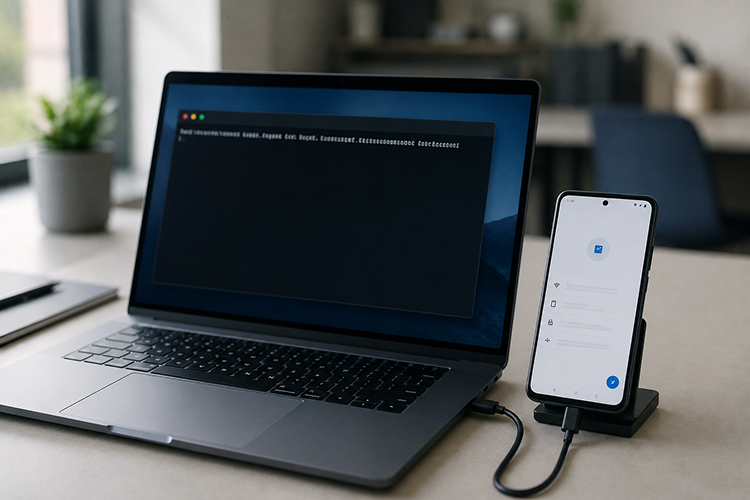
Getting to that command takes some setup, covered in full in our step-by-step ADB guide. The administrator first sets up a workstation with the Android platform tools installed. Then, on each device, they run the initial setup, enable Developer mode, connect over USB, install the agent, run the command, and configure the agent. Headwind MDM ships scripts and configuration files that cover the install-and-configure steps, so that part takes only a few seconds rather than requiring manual configuration. Some OEMs also preset the out-of-box state, which removes the first step.
The advantage here is independence. There are no ROM changes and no involvement from the device supplier, so you can do the whole thing yourself. The drawback is the per-device work involved: every unit needs the cable, the workstation, and a couple of minutes of attention. For a pilot or a small batch that is fine. For hundreds of devices it is the thing that holds up the rollout.
Option 3: Preinstall the agent in the ROM
When you’re deploying hundreds or thousands of devices, the agent should already be on the device when it boots. Google’s Setup Wizard is closed source and absent on cameraless and non-GMS devices, but AOSP itself ships a small Provision application that runs at first boot and installs the DPC with the permissions it needs (see Headwind MDM for AOSP).
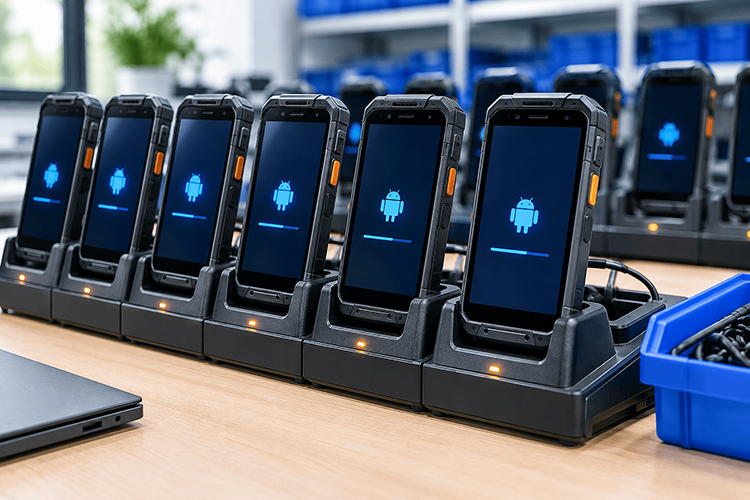
Provision has to be built into the ROM and signed with the device’s platform keys, which means the manufacturer is involved. In our experience, OEMs, including smaller ones, will tailor the ROM at order quantities of roughly 500 to 1000 units. Headwind MDM has done a number of these integrations and has a settled workflow for them.
Because Headwind MDM is open source, there is a second route that the closed-source products cannot offer. You rebuild the agent with specific build options and sign it with the platform keys, and it grants its own permissions on first launch, Device Owner included. This asks very little of the supplier, only the platform keys and a normal APK preinstall in the ROM, which is why it is the option most of our cameraless customers end up choosing.
Comparing MDM without camera installation methods
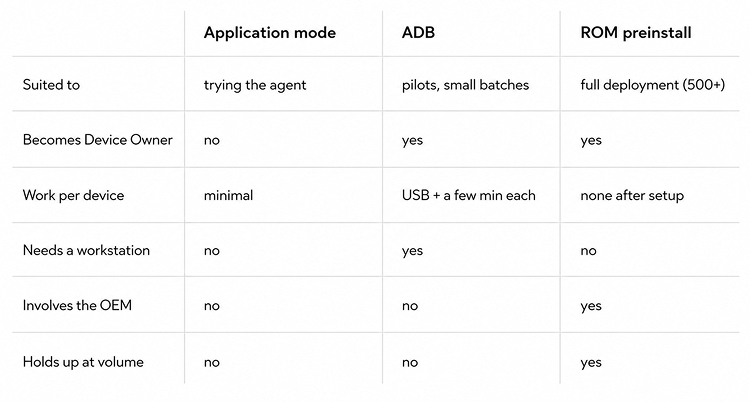
Application mode is for testing. ADB works until connecting devices one at a time stops being practical, somewhere in the low hundreds for most teams. Past that point the agent belongs in the ROM, and that is also where the work turns specialized: platform keys, build options, and coordination with the manufacturer, on hardware that is costly to redo once it has shipped.
Frequently asked questions
Can I set up MDM without camera access?
Yes. The ADB and preinstallation methods do not need a camera, and both end with the agent as full Device Owner.
Does this work on devices without Google services?
Yes. Neither ADB nor ROM preinstallation relies on GMS or managed Google Play, so AOSP and de-Googled devices are supported.
How is Device Owner different from a plain app install?
A plain install (Application mode) manages only part of the device. Device Owner covers the whole thing: app control, kiosk mode, launcher replacement, and policies the organization sets instead of the user.
Rolling this out across a fleet
All three methods are proven and work reliably. In practice, projects are usually delayed not by the MDM itself, but by the effort required for device preparation (option 2) or by coordination with the device manufacturer (option 3):
- Pilot setup — setting up the workstation, installing the agent, and validating MDM functionality on your hardware
- Mass deployment — preparing scripts, configuration files, and deployment procedures to ensure a repeatable and reliable rollout
- OEM work — working directly with your device manufacturer’s technical team to have Headwind MDM preinstalled in the device ROM
This is part of the Enterprise license. Send your requirements to our support team and we will scope the rollout with you.