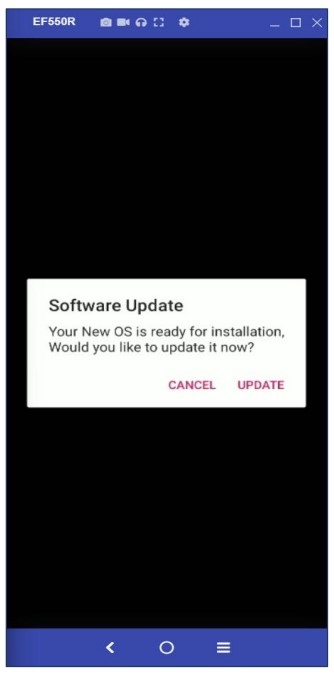
BlueBird Android devices (mobile computers, enterprise tablets, payment terminals, and other industrial devices) can be configured remotely by using the BOS™ OEMConfig application. This tool enables the admin to rollout the device settings by using a managed config JSON file, as well as to perform the OTA firmware update.
Prerequisites
To configure BlueBird devices remotely, the following conditions should be met:
- Devices must be provisioned by Headwind MDM
- The BOS™ OEMConfig application must be installed.
- Provisioning application (Package ID: com.bluebird.android.customizing) must be installed.
If the Headwind MDM configuration doesn’t have the BOS™ OEMConfig (package ID: com.bluebird.android.oemconfig), request the official APK by BlueBird, and add the application to the configuration.
Configure the device
To change the device settings, you need to prepare the managed config JSON and specify it as the managedConfig application setting.
Sample JSON:
{
  "step": {
    "datetime_step": {
      "Date": {
        "Year": 2026,
        "Month": 03,
        "Day": 10
      },
      "Time": {
        "Hour": 5,
        "Minute": 0
      },
      "Timezone": "Asia/Seoul",
      "AutoTimeZone": "No",
      "AutoTime": "Yes",
      "Set_24_hour": "Yes",
      "NTP_server": "time.google.com"
    }
}
For a full list of managed configuration parameters, please contact us or request BlueBird.
To apply the configuration, sign in to the Headwind MDM web console, open the configuration details, and select the Application Settings tab. Click “Add” and add the following setting:
Application: com.bluebird.android.oemconfig
Attribute: managedConfig
Value: (the value of the configuration JSON)
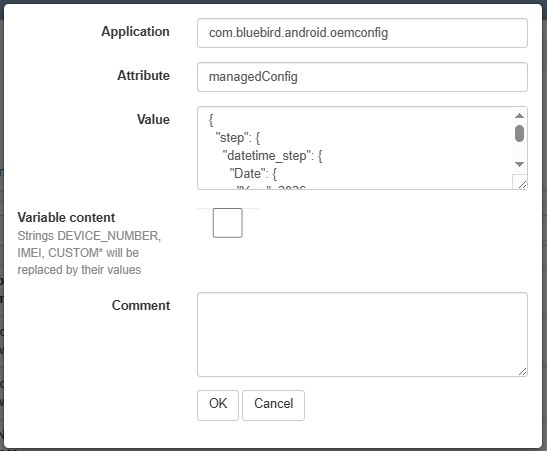
Click “OK” and save the configuration to apply settings.
OTA update
To run the OTA update, request BlueBird for the following artifacts:
- Provisioning application (package ID: com.bluebird.android.customizing).
- OS update application (package ID: com.bluebird.android.osupdate).
- Firmware update link.
Add the provisioning and OS update APKs to the configuration and wait until theyis downloaded and installed (the installation status in the device list becomes green).
Once you have the firmware link, and all required APKs are installed, you can rollout the update to devices in the same way you configure the settings (using the Application Settings feature of Headwind MDM).
Here is the sample managed configuration JSON for the OTA update (note: this is a sample configuration for the BlueBird EF550 Android 10 firmware package):
{
  "step": {
    "ota_step": {
      "ota_start": "On",
      "ota_url": "https://ota.bluebirdcorp.com/otatest/EF550_A10_Full"
    }
  }
}
Save the application setting, then save the configuration to apply it.
IMPORTANT: The OTA Update URL varies depending on the following:
- Bluebird device model
- Android OS version
- Firmware build version
Before deploying an OTA update, always replace the example URL with the OTA package URL that corresponds to the target device model and firmware version.
Verify the update
Once the device has been synchronized with Headwind MDM, verify the following:
- BOS Provisioning is installed successfully.
- OS Update is installed successfully.
- BOS™ OEMConfig is installed successfully.
- The BOS™ OEMConfig managed configuration is applied successfully.
You can confirm whether the update was successful by verifying the device’s build number. This can be checked using one of the following:
- OS Update application
- DevCheck application (Build Image Code)
- Settings > About Phone
If the managed configuration is not applied automatically, open BOS™ OEMConfig on the device, select Reapply Latest Restrictions to apply the latest managed configuration.
- Verify that the configured OTA Update URL is received correctly.
If OTA OS Upgrade Start is enabled and a newer firmware version is available, the device automatically downloads and installs the firmware update. The device automatically restarts to complete the OTA update installation.